Already using a custom SMK firmware?
Automatic install / resume recognizes the portable updater in Felucca, Sloop or Melodee SMK. No recovery adapter is needed for a compatible USB updater.
Classic synthesis. Deep sound design. A new Melodee experience for the SMK-37 Pro & Elite.
Play instantly in your browser. No keyboard required.
This firmware is a beta.
Provided without warranty. Keep a backup of your sounds and settings.
Connect your SMK directly to the computer by USB and power it on. Open this page in Chrome or Edge.
Export important sounds and projects, then close Studio, Simulator and other MIDI apps. Keep power and USB connected throughout installation.
Choose your model below. The official 016 file is downloaded and checked automatically to prepare the package locally. Studio and Simulator need no firmware installation.
Automatic install / resume recognizes the portable updater in Felucca, Sloop or Melodee SMK. No recovery adapter is needed for a compatible USB updater.
Use official Pro 016 or Elite 016 for the matching model. Automatic install / resume handles the stock loader handoff. An ambiguous Elite loader asks you to confirm the connected device.
Automatically detects stock firmware, an active loader, or Felucca / Sloop / Melodee SMK.
Optional fallback if automatic download is unavailable. Select the unmodified official Pro 016 or Elite 016 .fwsc for your model. It stays on this computer.
Loading candidate metadata…
Restore original M-VAVE firmware
Preparing files does not flash anything. Installation starts only after you click Install and grant MIDI access.
No device connected by this page.
This dual-core beta runs paired FM6 and Prophet voices on the second core, with serial fallback. Pro testing confirmed playing, project A-D and general-preset persistence, and 44.1 kHz PCM16 USB capture. Four-note stress tests kept USB capture flowing without worker faults, but recorded missed render deadlines and protective voice shedding. Other engines remain on the first core; this is not a promise of double performance.
Bluetooth and device sample uploads are not available. Elite hardware, USB playback/PCM24, physical MIDI expression and longer audio tests remain on the follow-up checklist.
Device storage backup and setup ↗ · Source and development notes ↗
Choose a group to highlight the controls and learn what they do.
These are the Melodee SMK mappings. Custom firmware changes what the original panel labels do.
Open Studio →Play in your browser or edit your connected SMK
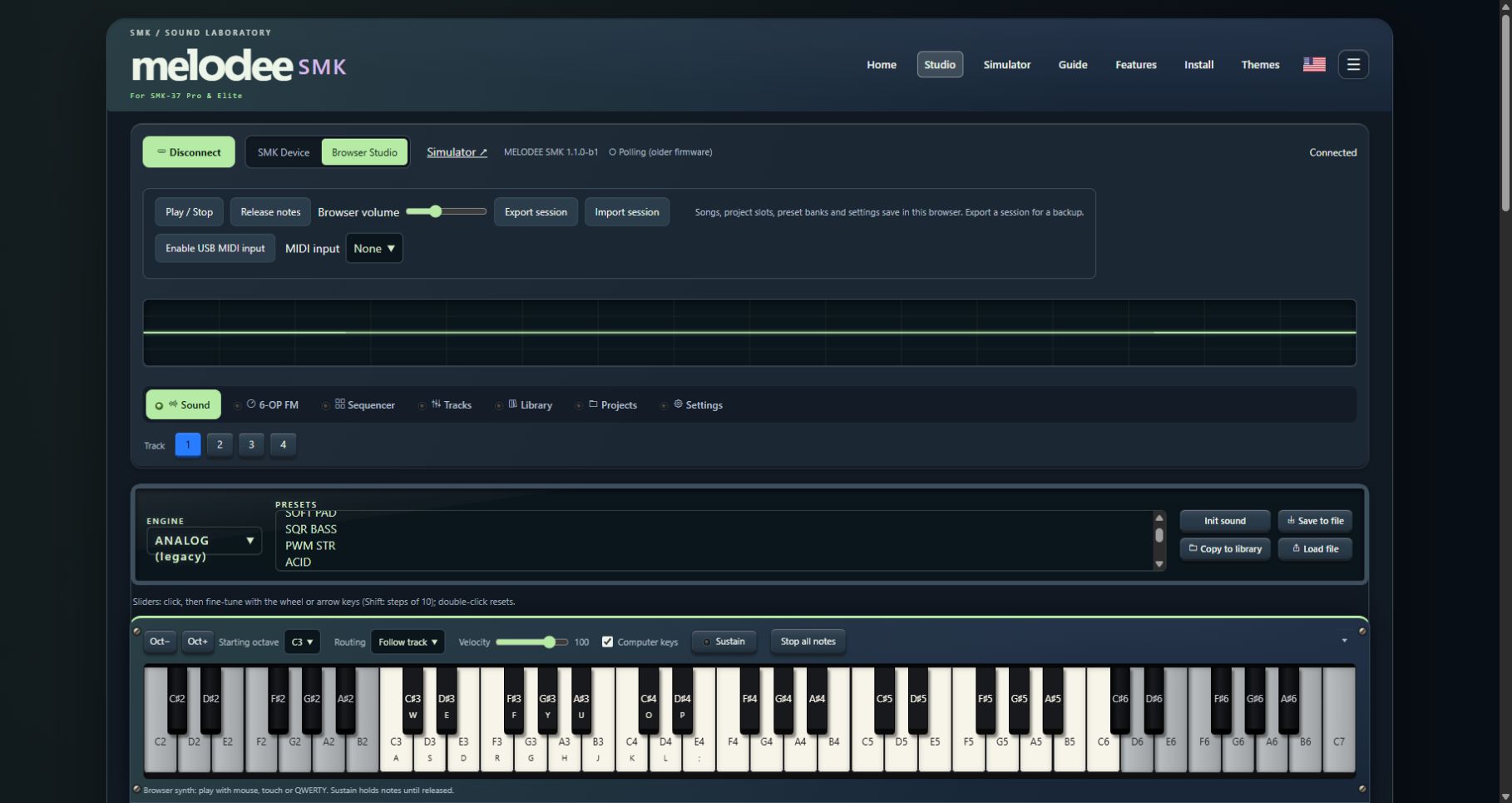
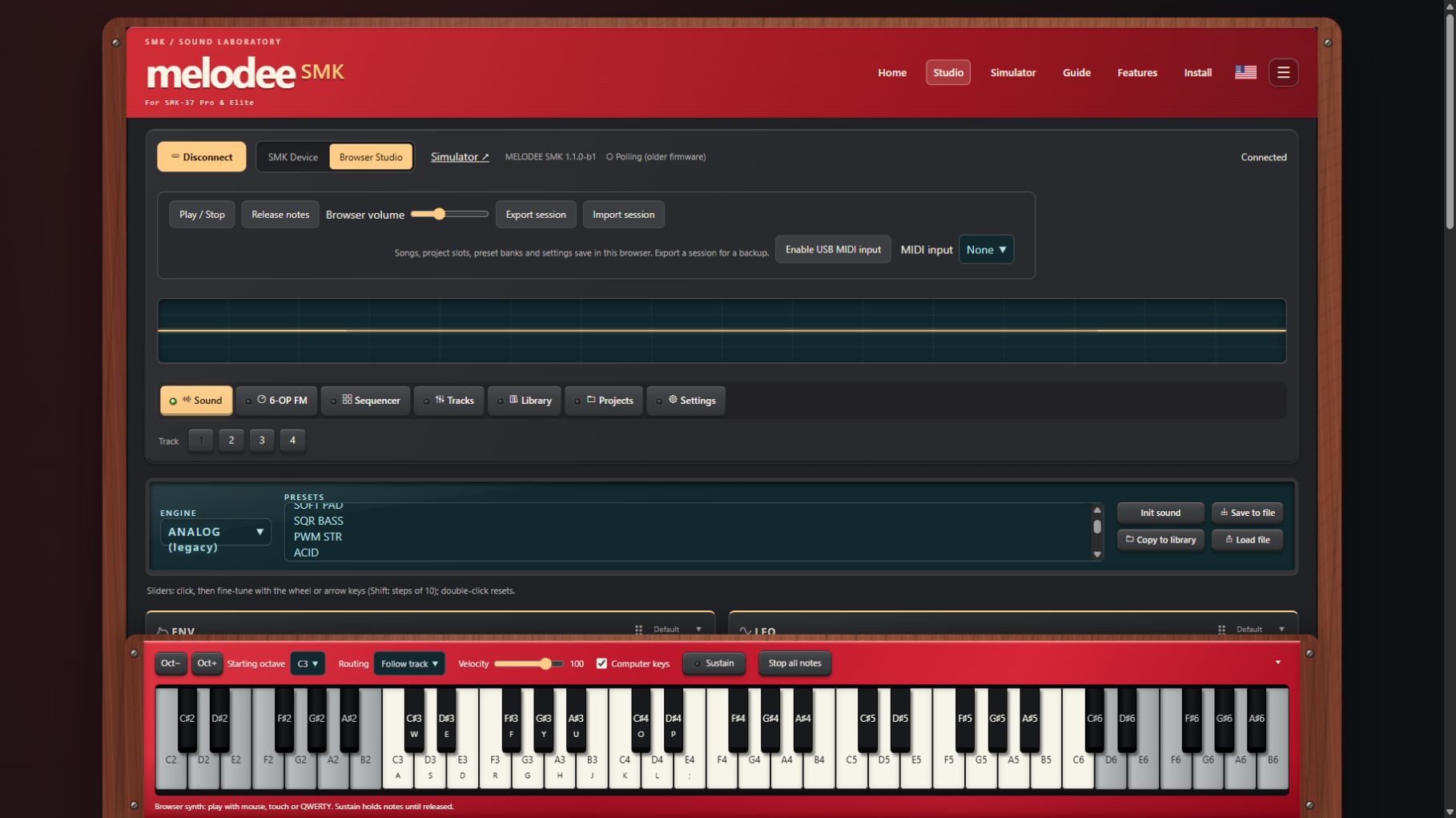
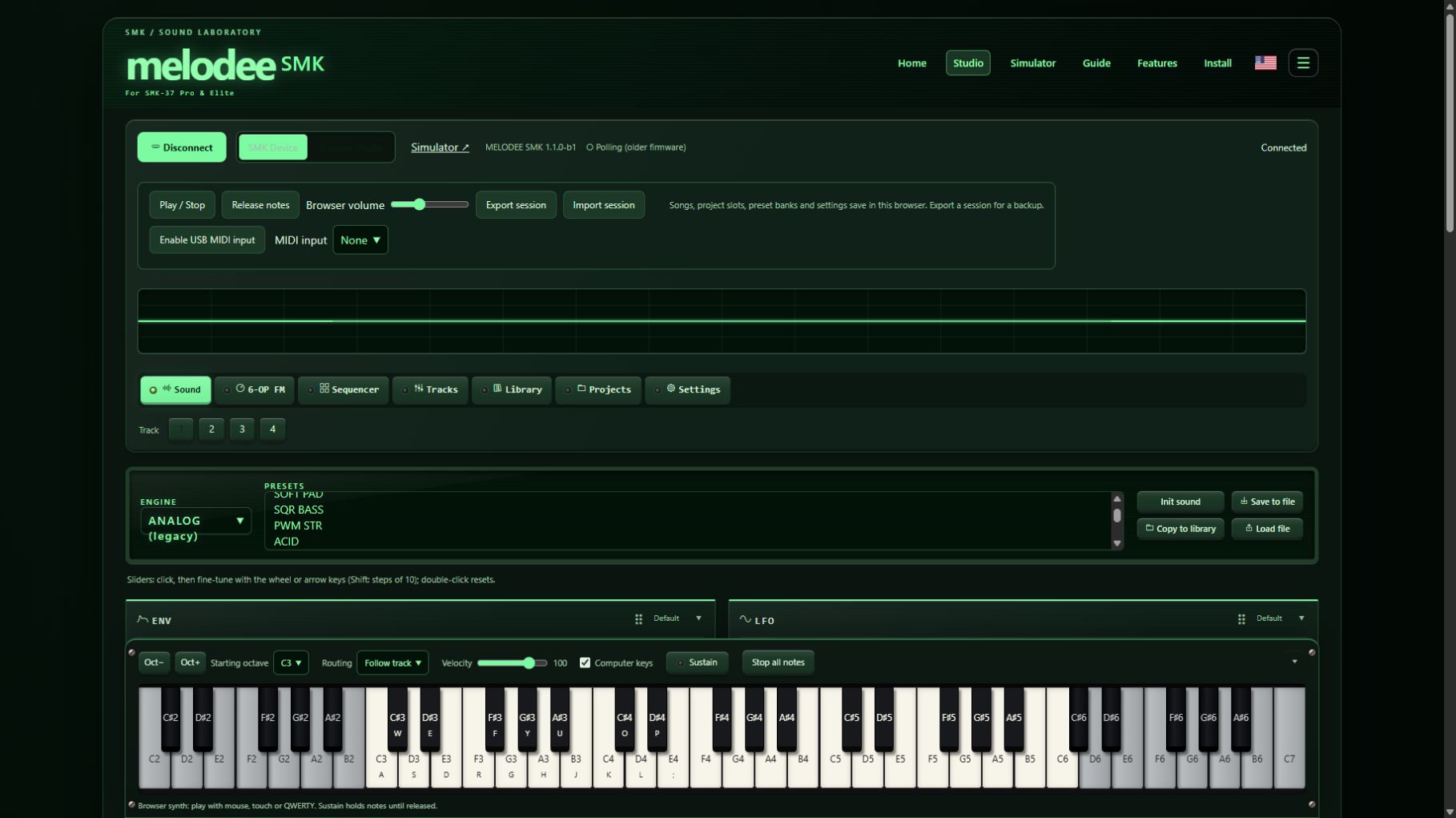
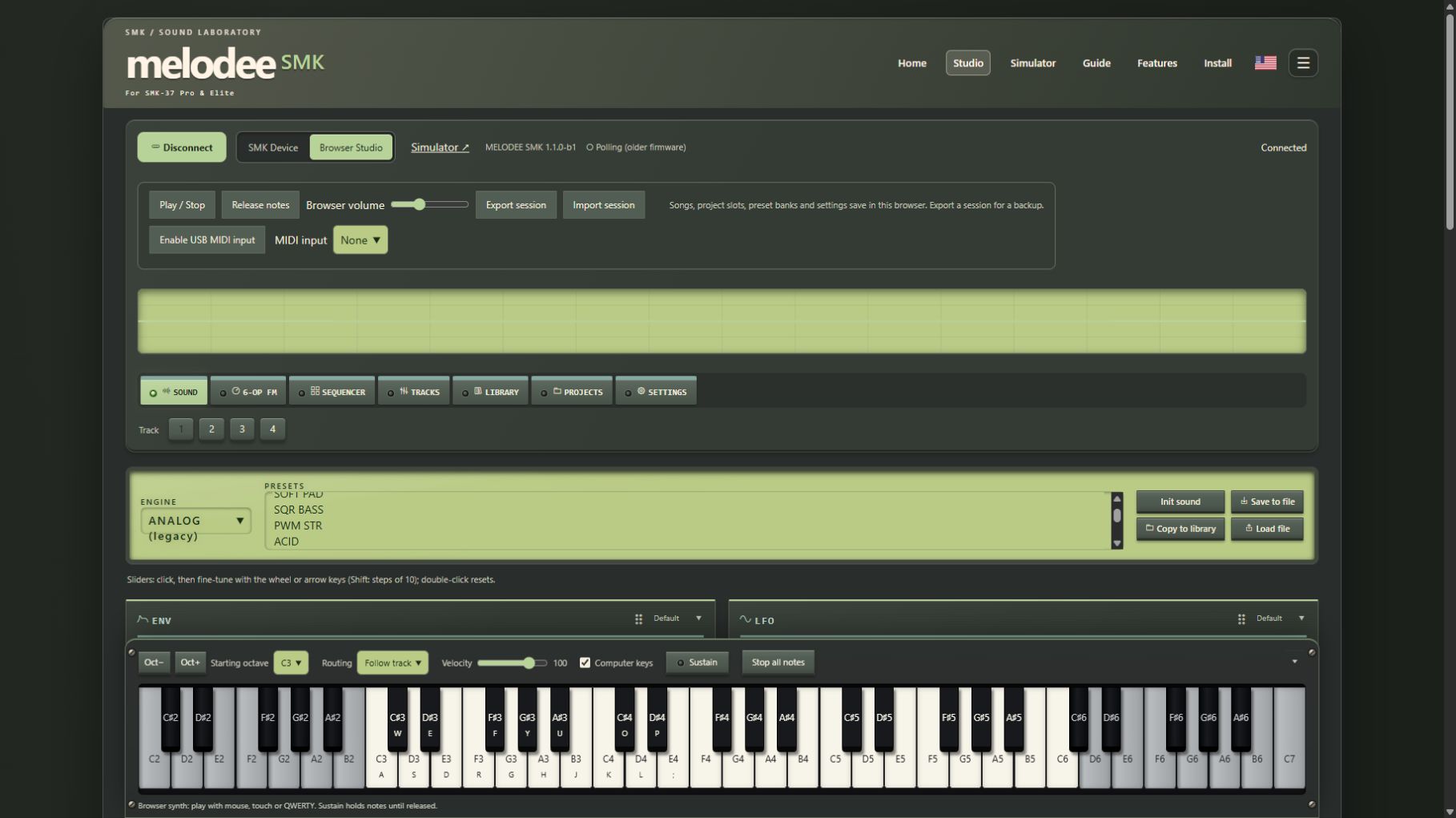
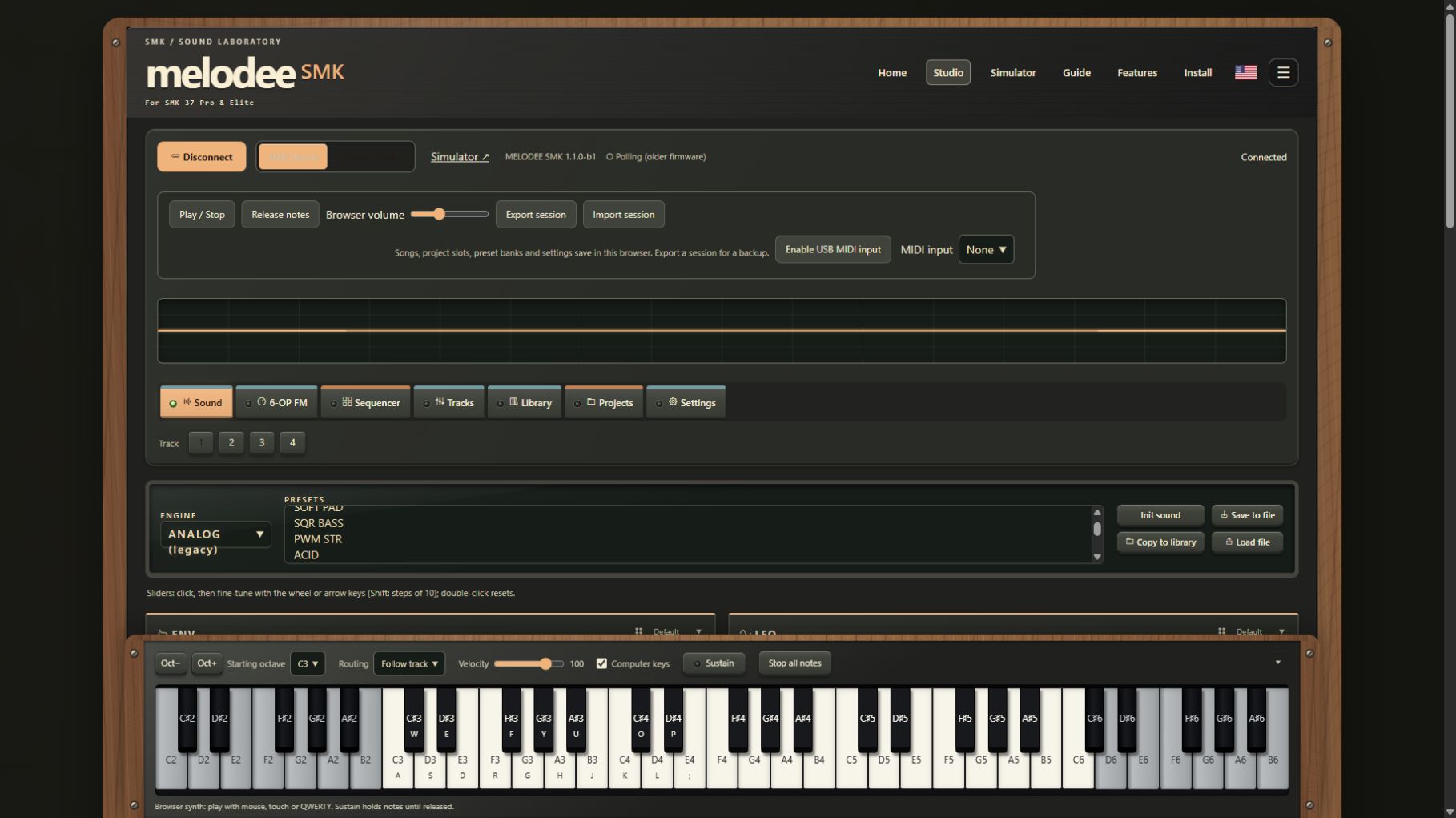
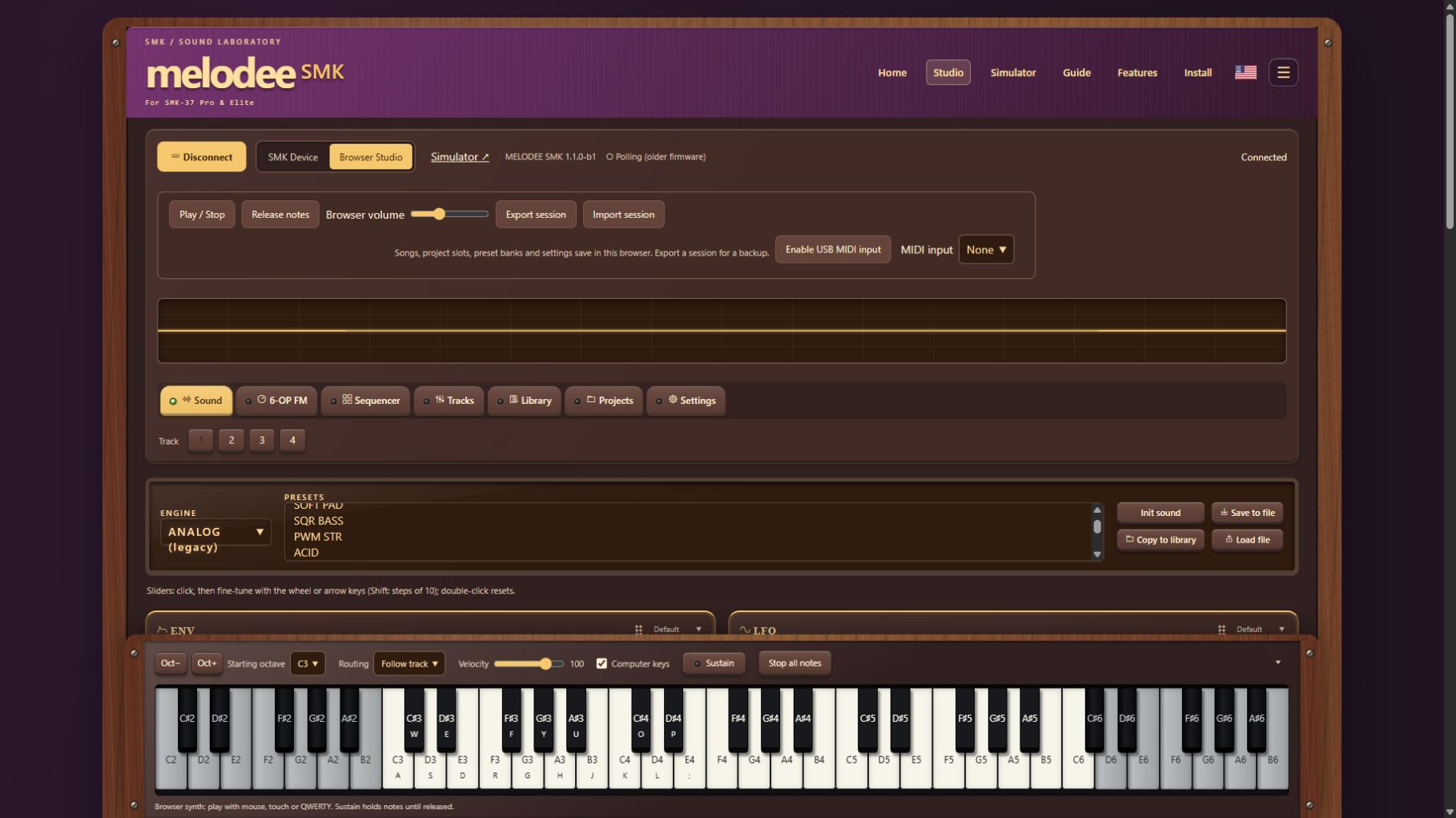
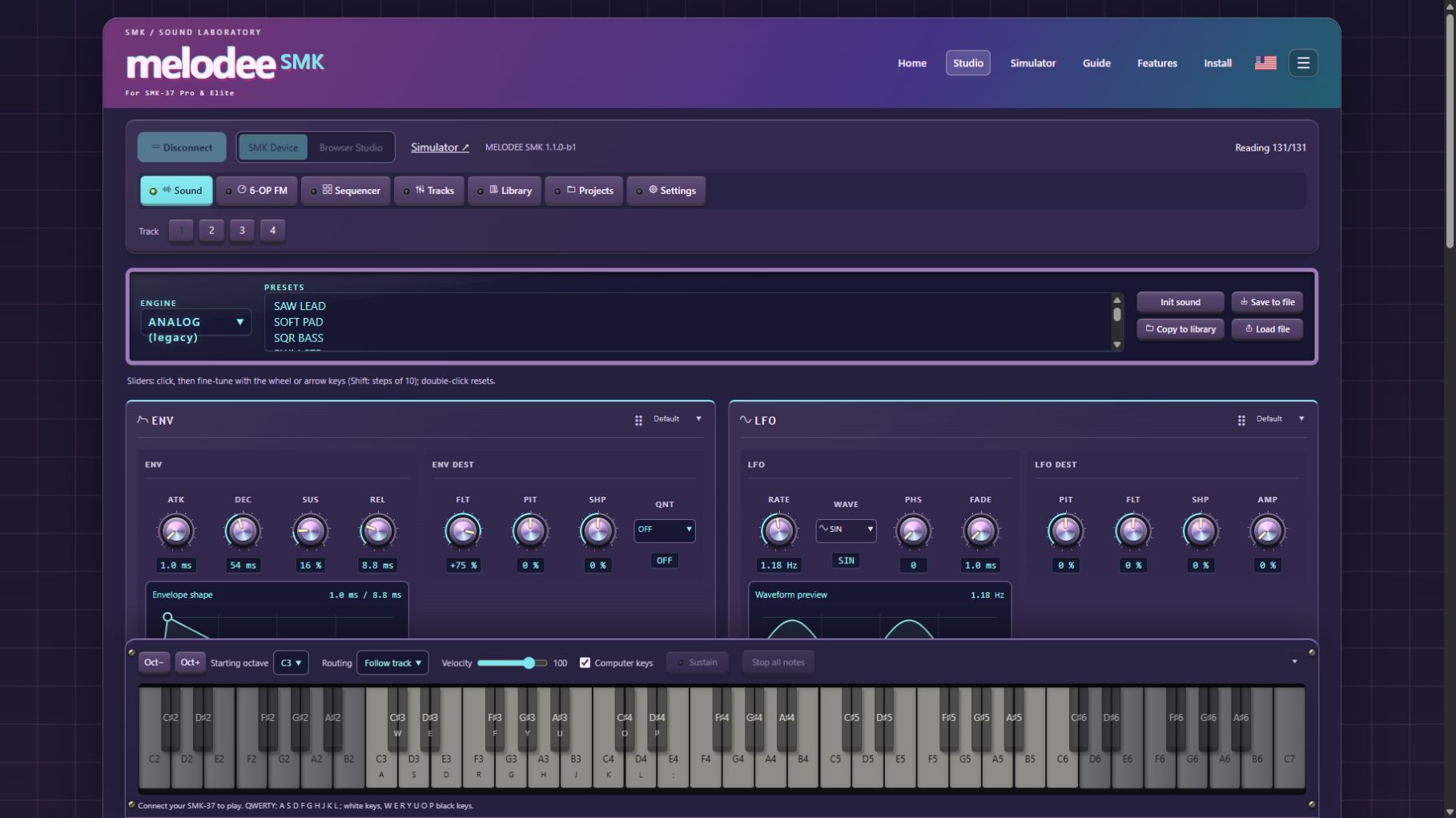
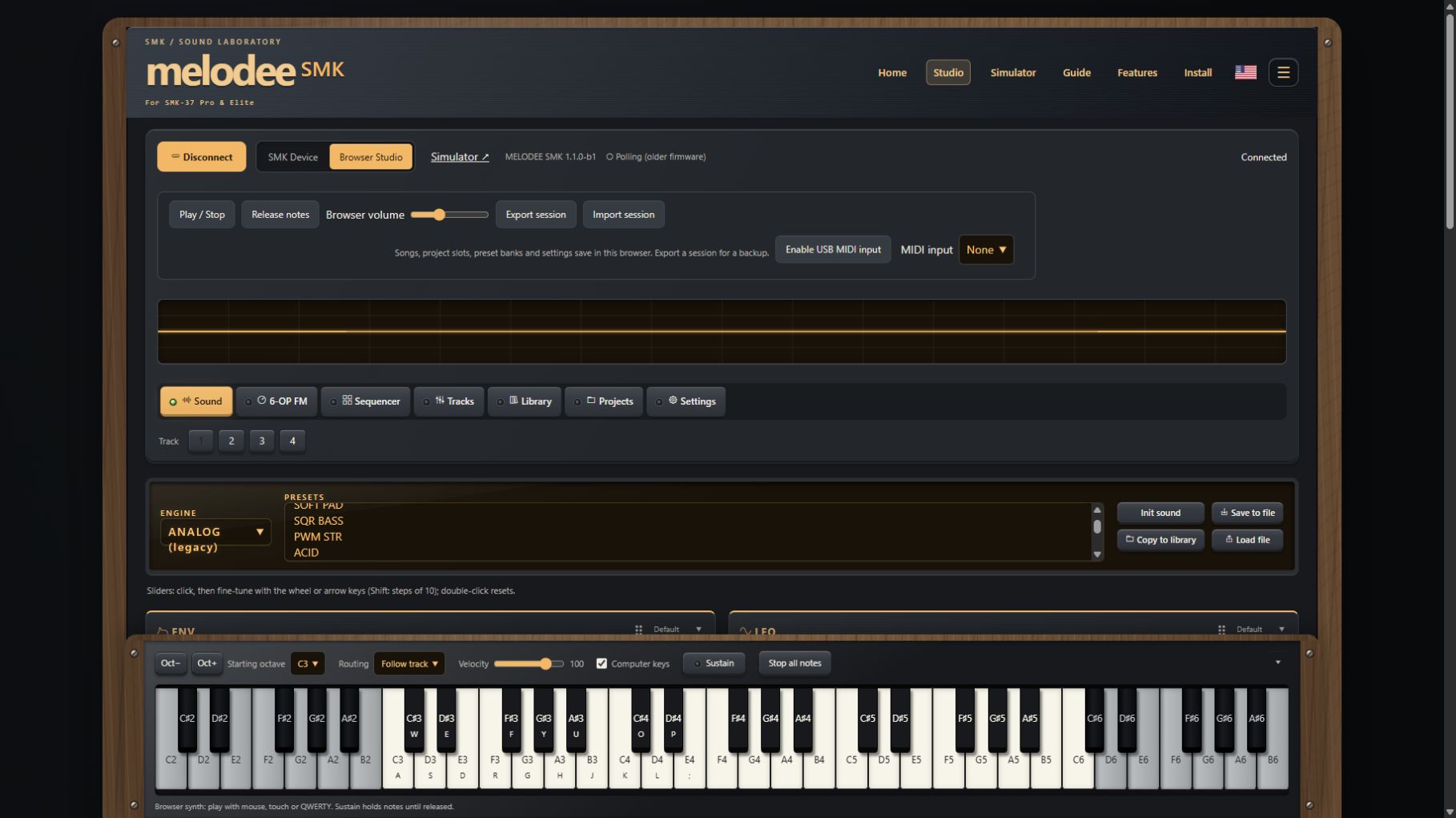
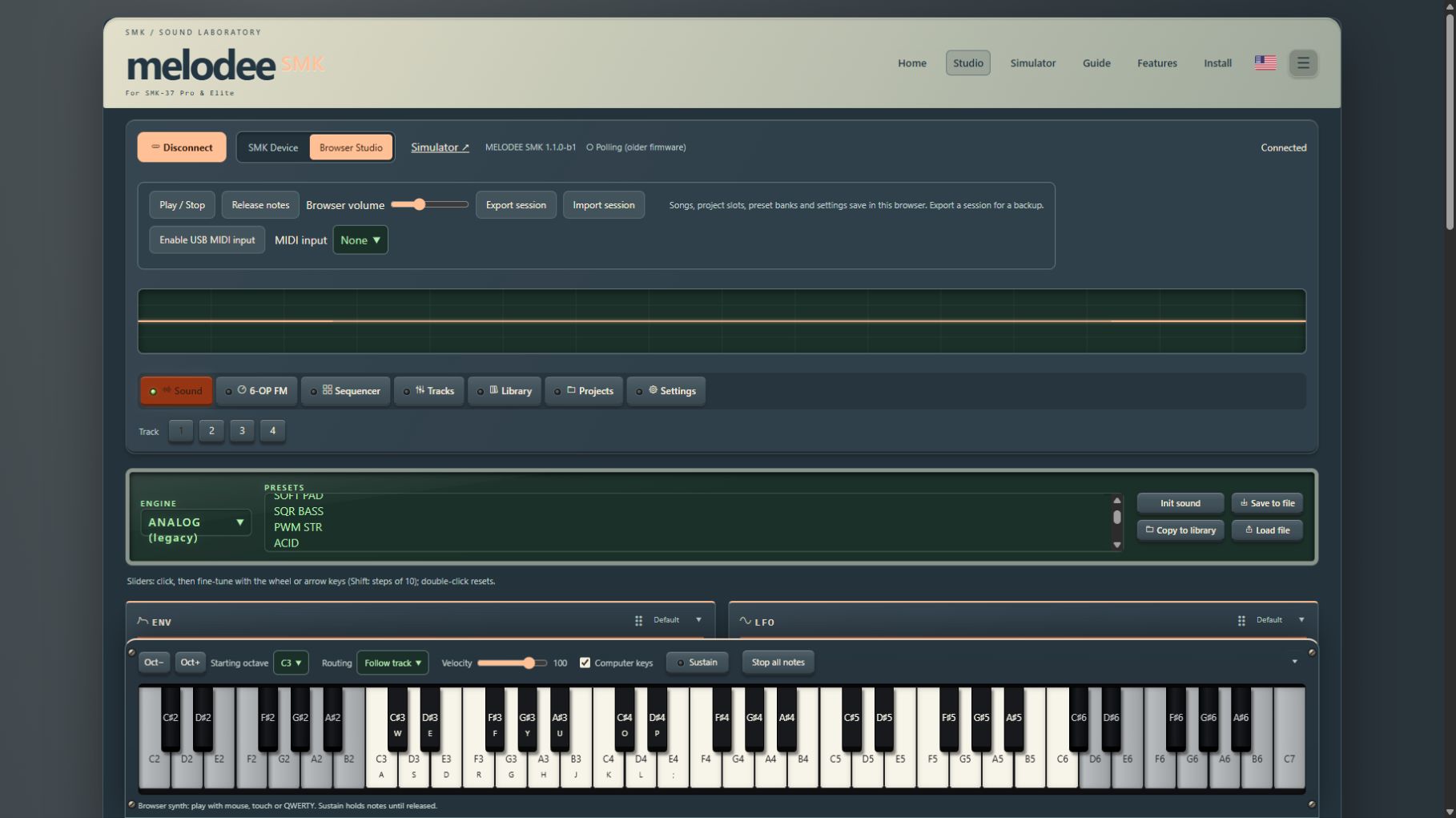
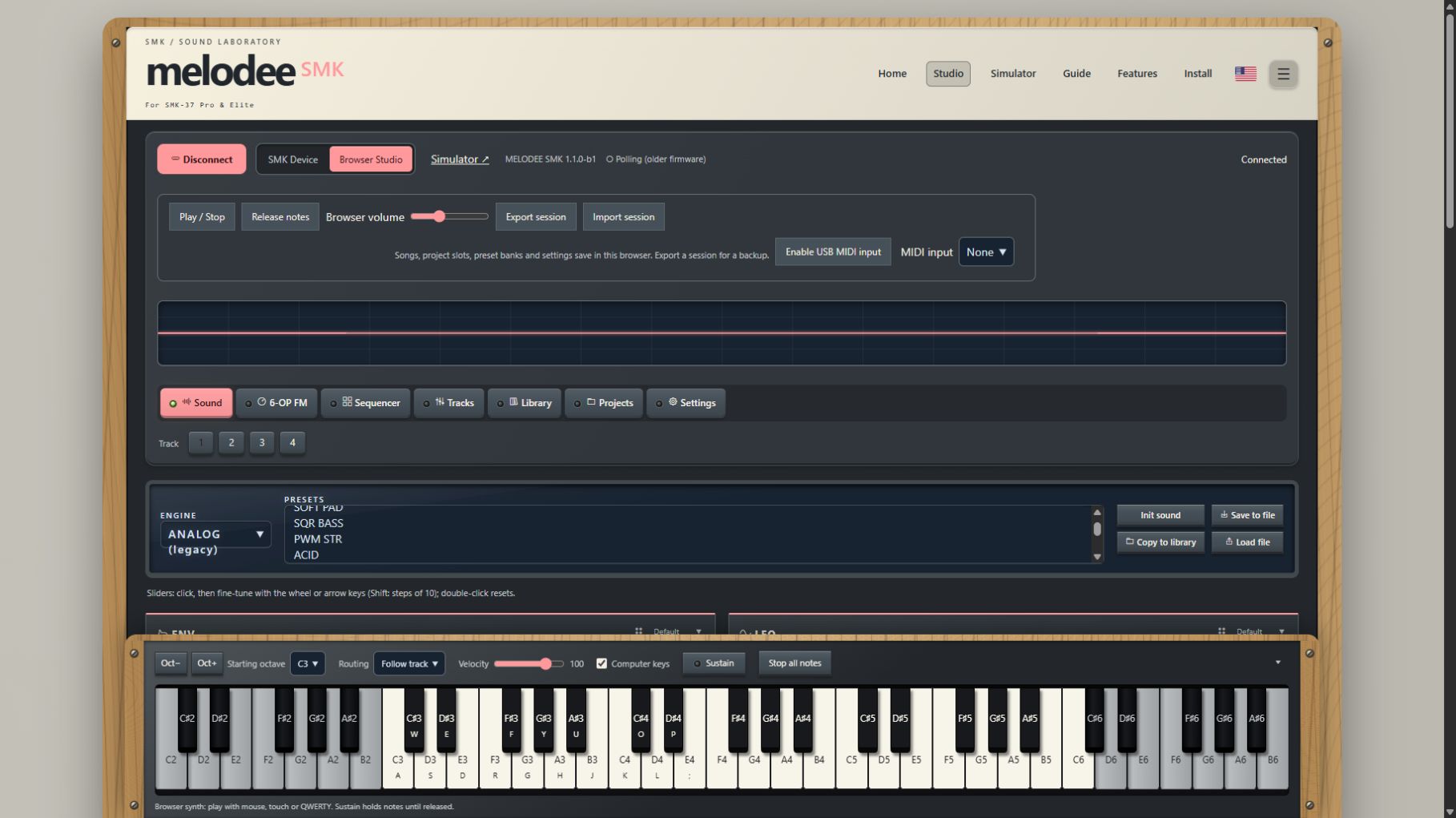
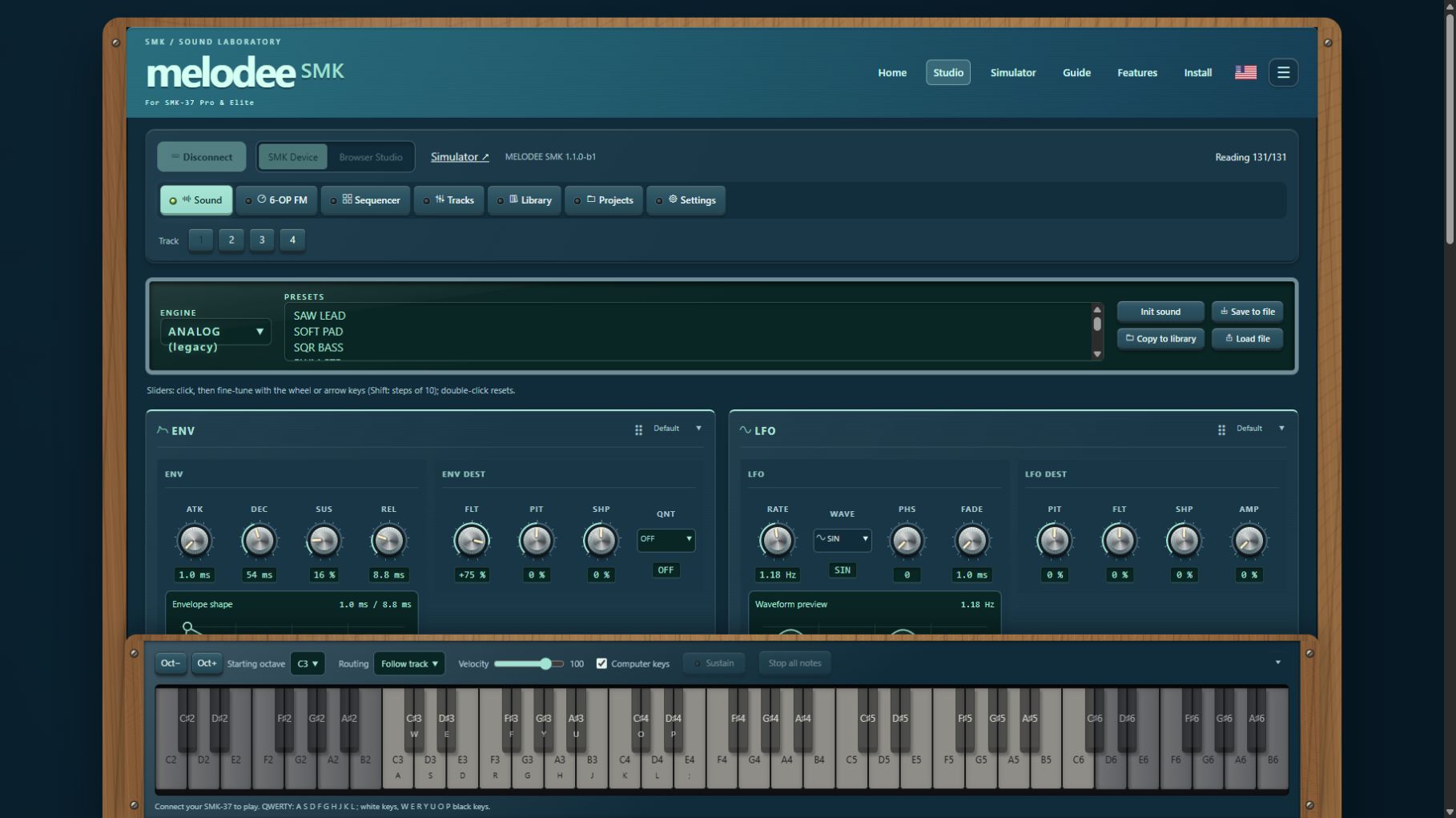
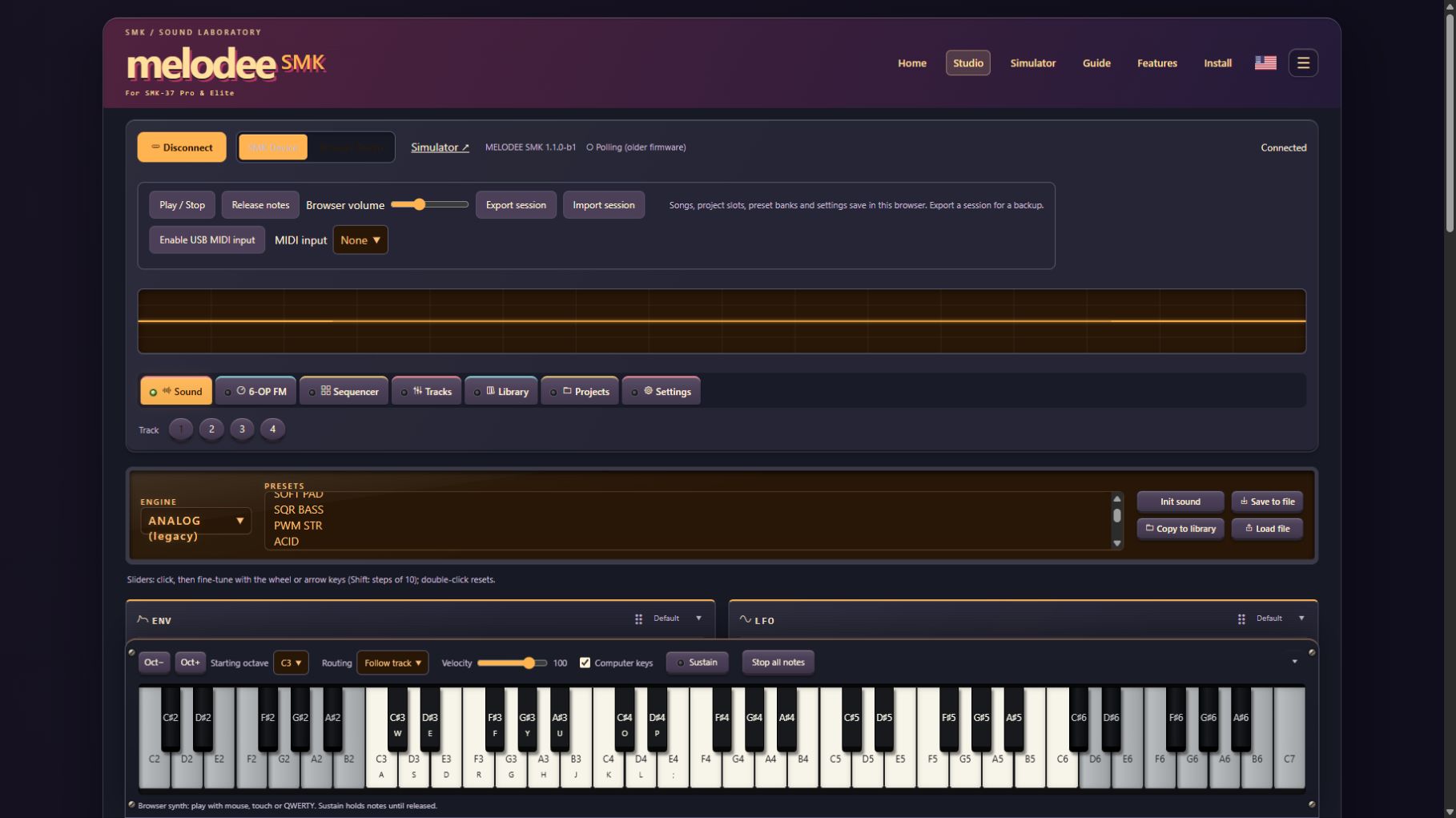
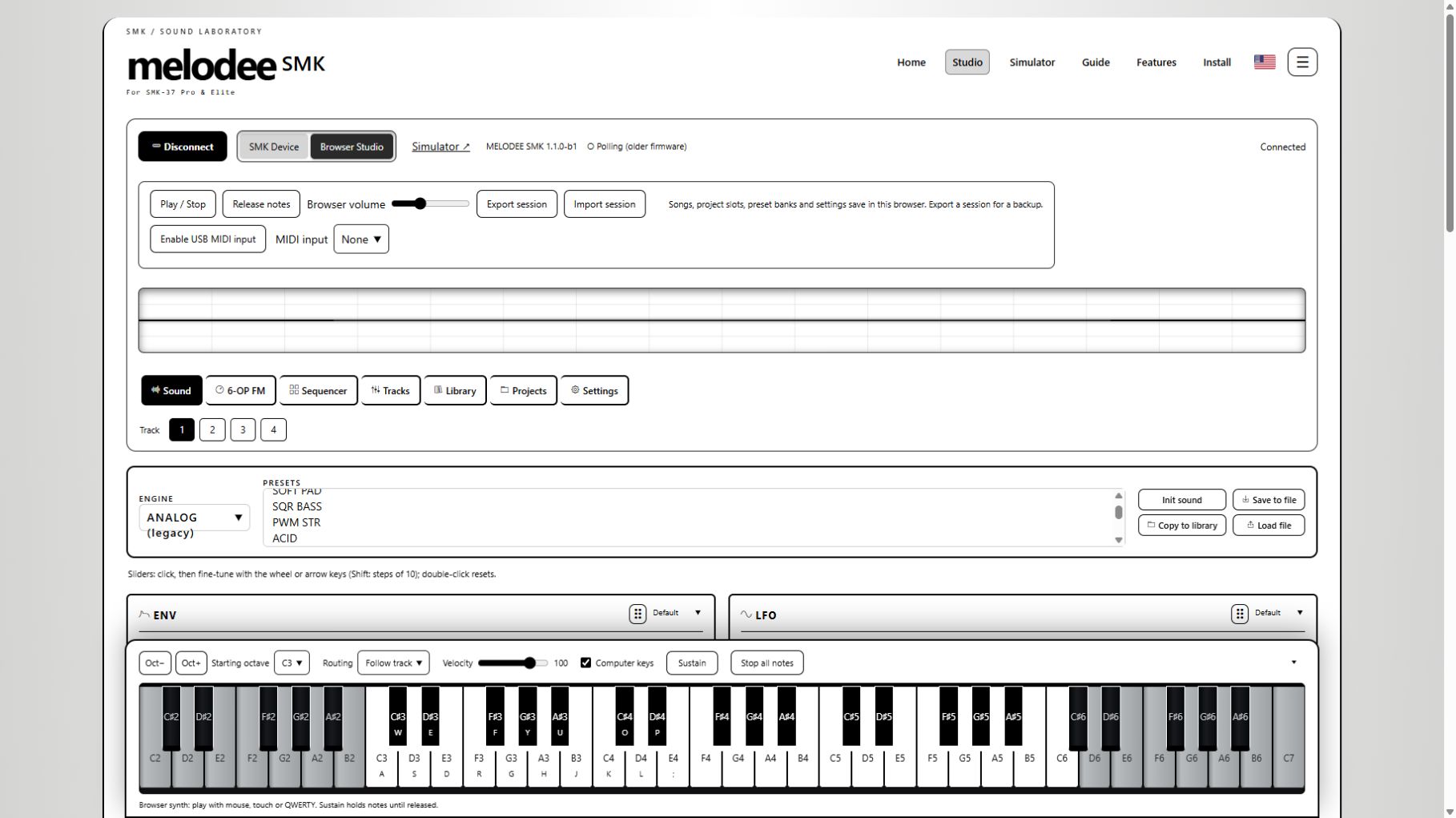
Choose a thumbnail to open Studio in that theme. Every theme has light and dark modes. Choose knobs or sliders and rearrange Sound cards in the Studio.
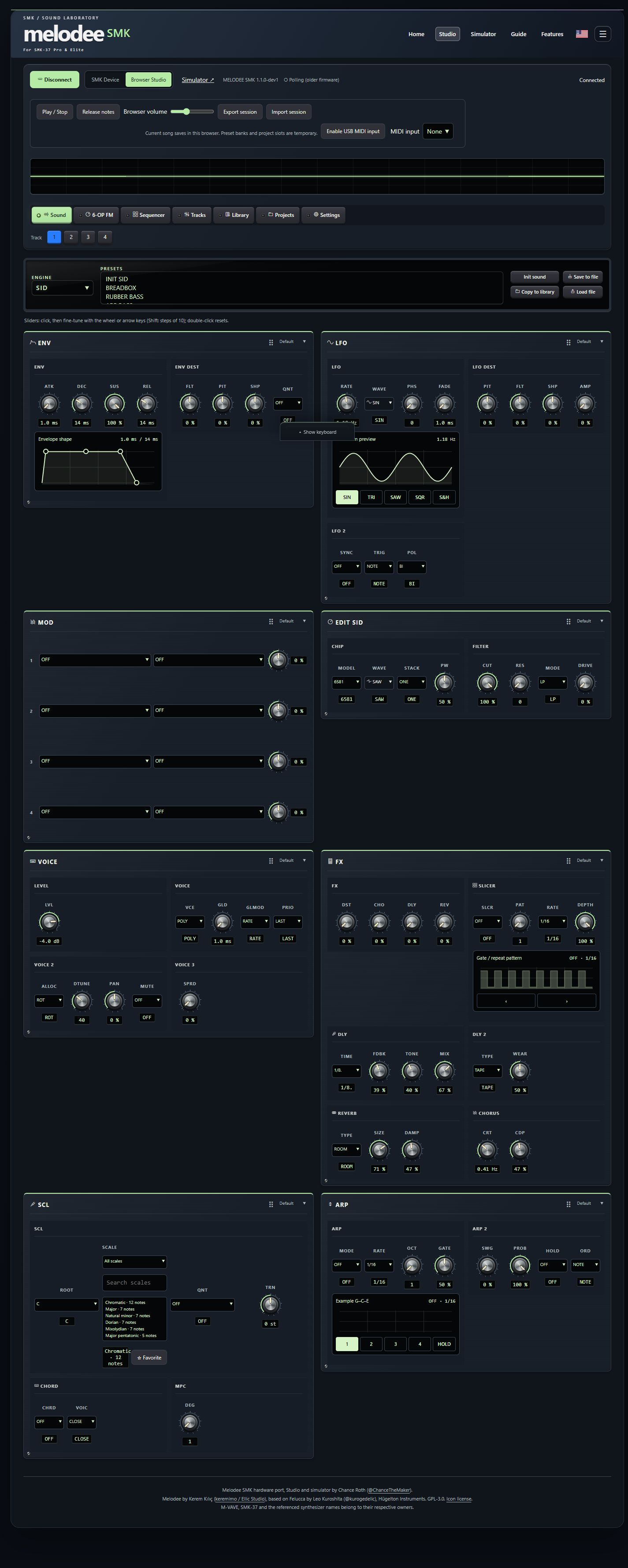 Open Studio ↗
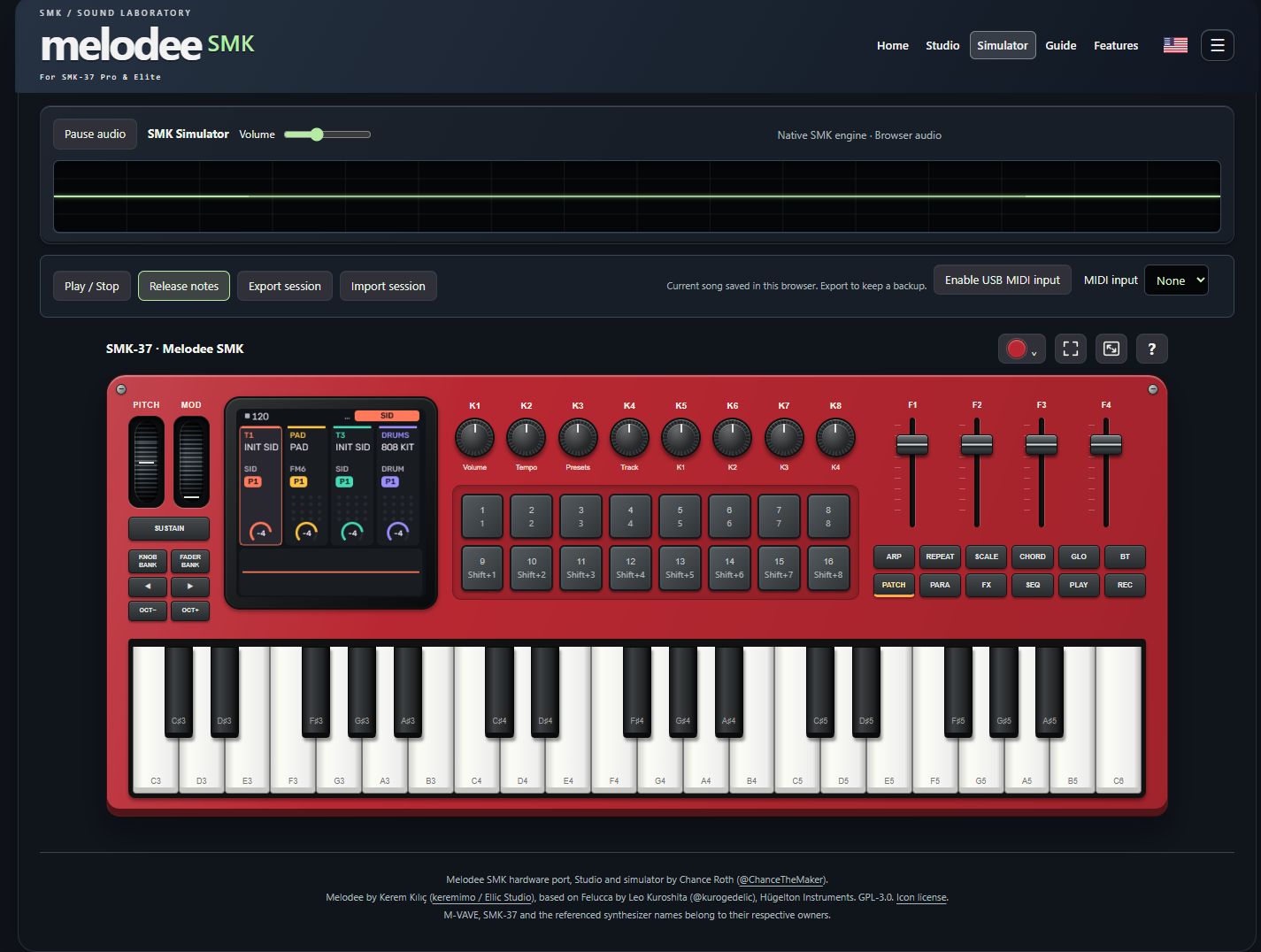 Open Simulator ↗
Play the 37-key SMK panel, tap the pads, turn the knobs and explore Melodee’s native screen. Swatch finishes, fullscreen and an interactive walkthrough included.
Explore the simulator ↗02Melodee’s own editor, dressed for the studio. Prophet programs, CZ envelopes, FM6 operators, sequencing, tracks, Library and projects in one place.
Enter the Studio ↗Enable USB MIDI input in either browser view. Choose a controller and play with velocity, sustain, pitch bend and modulation. Your physical instrument is never flashed by these views.
Browser audio + MIDI input